Showing posts with label networking. Show all posts

Sunday, August 12, 2012

Subnets

When I'm teaching people about networks, the one thing that tends to cause confusion is the concept of Subnets.

If you've ever manually entered an IP address, you'll be familiar with the following:

I've added the red box to point out the "subnet mask"; a bunch of 255's and 0's that magically appear whenever you type in an IP address.

But what does it mean?

Splitting Networks

I briefly touched on the subject of packet switching in my "Layers of the Internet" article. Basically, an Internet Protocol (IP) network is a collection of devices connected via some form of network.

But what if we wanted to have some computers on the same network, but we didn't want them to interact? For example, we had the computers that controlled a company's payroll on the same network as the company's email servers.


Obviously that's not a wise thing; anyone with a bit of networking knowledge and access to Google would be able to give themselves an unexpected pay rise.

Thankfully, internet engineers foresaw this problem and came up with "subnets". A Subnet is a simple way of splitting one physical network in to two "virtual" networks.
Just like devices that are on separate physical networks, devices on different Subnets can't communicate with each other.

In other words, you can have the finance guys  on one subnet and the rest of the company on the other subnet, and you'll never have to worry about people editing their own pay grade.

One Number; two addresses

The great thing about Subnets is that they are contained within the devices' IP addresses by default.

The IP address is made up of two parts; the "Subnet" address and the "Device" address.

In fact, an IP address is a lot like a Street address. If you look at an address like "31 George St" you can instantly find that building. "31" by itself means nothing, and "George St" is too vague to be of any use.

In our IP addresses the "Subnet" address is the street, and the "Device" address is the number.

But let's look at one of the IP addresses above.

192.168.100.5
That doesn't look much like "31 George St". Which part is the Street, and which is the number?

Subnet Masks

Now we are finally coming to the mystery behind the Subnet Mask.
A Subnet mask tells us which part of the address is the street and which is the number.

The network in the diagram above has a subnet mask of:
255.255.255.0
Quite quickly we can see something special here. Everywhere that there is a "255" is part of the Street Name, and every where that there is a "0" is the number.

Let's look at that address again:
192.168.100.5
If use use the above rule, the "Street" (Subnet) becomes 192.168.100 and the Device number is 5.

Looking at our network again, we can see that the Finance machines on subnet 192.168.100 are effectively on a separate network from the workstations on the 192.168.101 subnet.

But what if...
Okay, for an exercise, let's take the same network as above, but let's change the subnet mask to:
255.255.0.0
As you'd imagine, all of the devices are now on the same subnet:
192.168.100.5
is on the same subnet as 
192.168.101.5

So we have to be careful when designing our networks to include the correct subnet masks in all of our addresses.

But what does 255.255.255.0 mean?
I have never been asked this question, so I am going to pre-empt you all and give you the answer.

Remember that all computers work in binary, that is, 0's and 1's.
An IP address is made up of four groups of eight bits, that is, eight 0's or 1's.

So, if we were to look at 192.168.100.5 in binary, it would look more like:
11000000.10101000.0110010.00000101
Now, that doesn't look like much to a normal person, but now let's have a look at the subnet mask 255.255.255.0:
11111111.11111111.11111111.00000000
It should be immediately obvious that the 1's show the subnet, and the 0's show the device number.

And so we come to a more general rule:
The Subnet Mask denotes the "Subnet" part of an IP address with a 1, and the "Device" part with a 0.

If we look at other subnet masks we can see this quite clearly:
255.255.0.0 = 11111111.11111111.00000000.00000000
We can also get into more exotic subnet masks:
255.248.0.0 = 11111111.11111000.00000000.00000000

It's very rare to find a subnet mask that isn't a combination of 255's and 0's for the simple reason that it is practically impossible to work out the subnet/device number of a "split" subnet mask.

Slash Fiction

Since writing 255.255.255.0 constantly is a bit of a pain, IT people have come up with a quicker way of notating the subnet mask of an IP address.

Normally, for our Finance Server in the example above, we'd have to write:
IP: 192.168.100.5
Subnet Mask: 255.255.255.0
But let's look at the subnet mask of 255.255.255.0 in binary again:
11111111.11111111.11111111.00000000
We can see that this is simply twenty-four 1's in a row. So, we can write the full IP address of the server as:
192.168.100.5/24
The "/" at the end of the address denotes the subnet mask; in this case, twenty-four 1's (or, in decimal, 255.255.255.0).

If we had the subnet of 255.255.0.0, the Full IP address could be written:
192.168.100.5/16
as 255.255.0.0 only has sixteen 1's in a row to denote the subnet address.


I hope that this has explained the concept of the subnet mask. As always, please let me know if you think that this could be a better explanation!

(PS: I do know that there is also the whole subject of VLANs that offer a better explanation for how to separate networks, but I'll leave that for another time!)

Monday, December 19, 2011

Tuesday, October 25, 2011

1.5 Mile Wireless connection

Just saw this pop up on Engadget. Wireless repeaters that go for 1.5 miles (2.4km).

I'm thinking large stadia or live sites where you'd need to move a bunch of signals around but it would be impractical to run Cat5 across the ground, or events like the Sydney New Year's Eve fireworks where there are barges spread out across the harbour...

Press-release and first thoughts:
http://www.engadget.com/2011/10/24/amped-wireless-gives-your-wifi-1-5-mile-range-never-lose-signal/

Company Signal:
http://www.ampedwireless.com/

Sunday, October 16, 2011

Layers of the Internet - Part 4

If you are new to this area, or are looking for the first three parts of this series, please use the following links:
Layer 1 - Link Layer
Layer 2- Internet Layer
Layer 3- Transport Layer

To recap quickly, the Link layer is the physical connection between devices (be it wireless, electrical or optical).
The Internet Layer is the layer that deals with the virtual separation of the entire Layer 1 network into smaller, virtual networks, and also allows traffic to be routed from one side of the planet to another.
The Transport Layer deals with two main things; where the data goes inside the devices that receive it, and also how the packets are passed around the networks (e.g. error correction protocols - re-sending a packet that never arrived at the destination.


Layer 4 - The Application Layer
For a second, let's think about what we are trying to achieve with a data network. We are trying to move information (be it computer data, an image, live audio... anything) from one point to another. If we look at what we've done in layers 1-3, we can see that we've done nothing but move the data from one end of the earth to the other.

Layers! Layer 4 is like the river and the clouds above; they rely on the lower layers of the earth, but they don't really care about them

.
But before any data can be delivered, we have to actually work out what data we are going to transport, why we around going to transport it and then what we are going to do with it at the other end. Data is useless unless we actually do something with it. For example, you could send a friend a photo, but if they can't view it then there was no point to transferring the data in the first place.

This is where the application layer comes in. It is the layer of the Internet that interfaces with the Users, but it is also the layer where we actually change the information that we are sending.

But Layer 4 isn't all about the Users, there's a lot of background processes involved. Let's have a quick look at a simple internet action; checking this blog:


  • Step 1: You open your browser and type "http://arts-comms.blogspot.com". This is the start of the process; you enter a small amount of data; 30 characters. It's not much when you think about it.
  • Step 2: Your browser tries to find the address of this page. If you were going to send a letter to a friend you couldn't just write their name on an envelope, post it, and hope for the best. The "Human-readable" Universal Resource Locator (URL) is similar to you friend's name; you can use it to describe them and look them up, but it isn't exactly an address. So, before your browser starts downloading this page, it looks out for a Domain Name Server (DNS) that will translate the URL into a TCP/IP Address.This address combines the Layer 2 and 3 addresses for the webpage. In this case the IP part of the address is 74.125.71.132, and the port is 80. This could be written 74.125.71.132:80.
  • Step 3: Your browser now requests a session with the blogspot.com webserver. Now that your browser knows where to look, it will send a request to 74.125.71.132:80 to ask if it can start talking to the Server. The server will normally check that there are no bans on your device, or any other reasons that it wouldn't want to talk to you.
  • Step 4: The Server opens a port and allows a session to begin. Should everything in Step 3 check out, the server will allocate a port number (this can be random, or fixed; it depends on the server) and then sends the information to your browser, letting it know that it's all good to go.
  • Step 5: Your Browser requests the Webpage. Now that the Server and your browser are talking, the browser finally asks for this page, sending along with the request any additional information that might be required (e.g. your login details, or which exact page you're requesting).
  • Step 6: The Server retrieves the webpage from its hard drive, and then transmits it as a series of packets. If you were to send a entire webpage as a single packet, it would be huge, and that would slow it down through the Internet. So the Server splits up the webpage into a number of small packets, adds a bit of information to let your browser know the order of the packets, and then transmits them through the network.
  • Step 7: Your browser assembles the webpage, checking for errors as it goes. There is always a chance that some packets will get lost in transit. However, since the server has added information for your browser, it will know if anything is missing. If something doesn't make it then your browser will re-request the missing pieces.
  • Step 8: Close the Session. Once everything has been checked, and you're happily reading away, the browser sends a message to the Server to finish off the session that was opened in Step 4. Once this is closed the connection disappears from the internet.


So, from your 31 keystrokes (including the "enter" key at the end) your browser and the Server have been communicating at Layer 4. You'll notice that I barely mentioned the Layer 1-3 protocols; and that is because  at Layer 4, just like all of the layers below it, the lower levels are transparent. It doesn't matter that I'm on a wireless connection and the server is on a optical fibre connection; they are connected up to Layer 3, and that's all that matters.

I'll be doing little write-ups on the various protocols as I continue to write this blog, so please stay tuned to the Glossary. Once I write an article on each protocol I will link it from the Glossary.

Monday, October 3, 2011

Layers of the Internet - Part 3

Before I start I would like to make a minor classification.
The "Layers" to which I am referring are the Internet Protocol layers, as specified in RFC 1122. I feel this model is more appropriate to the topics that I cover in this blog.


For those of you that wish to delve further into Networking as a subject, please refer to the Open Systems Interconnection (OSI) model. This model is the one that you would study in a networking degree, however it is slightly too specific for the purposes of this blog.


Layer 3 - The Transport Layer
In the previous two parts of this section of the blog, we looked at Layer 1 - The Link Layer and Layer 2 - The Internet Layer. In those layers, we say that each device was physically connected to all others, but with a bit of technology, we could divide up that huge network into smaller little sections.

I'll admit, it's difficult to visualise the Transport Layer. Here's some model trains.


As we have now connected on Layers 1 and 2, we can assume that our two devices are talking to each other. At this point it doesn't matter how that happens, or how many switches the packets have gone through in order to get from A to B. The tunnel through the Internet has been made, and for all intents and purposes, it isn't broken until the connection is shut off.

Layer 3 tells us two things; how a packet will move through a network, and where it will go when it gets there. In order to understand this we will examine two of the main Layer 3 Protocols, Transmission Control Protocol (TCP) and the User Datagram Protocol (UDP). And yes, if you noticed that the "TCP" looks very similar to the "TCP" in "TCP/IP", you'd be correct. Since TDP is the most common Layer 3 Protocol, and IP is the most common Layer 2 protocol, people refer to this model as the TCP/IP suite of protocols. However, due to the complexity of the protocol, I will start off with the UDP.

User Datagram Protocol
Take a moment to think about how many different network-enabled programs you are running now. On my machine I have two browsers with a few tabs in each, Skype, two email clients, a couple of automatic software updaters.... the list goes on. Now think about a lonely packet headed my way. It has the MAC address (from Layer 1) so it knows where my computer is. It has my IP address (from Layer 2) so it knows how to find me on the network. But once that packet finds its way into my wireless adaptor, where does it go? Is it a part of a webpage, or a message from a friend via Skype, or an email?

Both the UDP and TCP use a number, called a "Port," to direct a packet to the program that it needs to arrive at. Your network adaptor reads the Port number and forwards the data to the appropriate program for processing.

A UDP packet contains a bit of information that identifies it as a UDP packet and a Port number. That's about it. The advantage of this is that you have a smaller packet, which means faster transmission times. We'll look into this a bit later.

Transmission Control Protocol
Whilst a UDP packet basically only has the Port number, a TCP packet contains a lot of additional information. TCP packets can contain information relating to tracking and delivery protocols. For example, a TDP packet could identify that it was the 15th packet in a sequence, and that the receiving device should send notification of receipt.

This information can be used to make sure that packets that have been lost due to network errors can be re-requested and re-transmitted. Packets that take too long can killed off. Devices can send packets to each other to check the speed and path of the transmission.

All of this extra information makes the packets bigger, and hence slightly slower. However, in any non-real-time application this extra transmission time doesn't make much difference. Since very few transmissions actually require real-time transmission, the more Robust TCP is more common than UDP.

The main place we see UDP packets in the Arts industry is in audio/video transmissions, like Dante or AVB.  UDP also requires less programming, and thus it is more common in smaller applications, so you may come across UDP systems in some control software.

"Layer 3 Switches"
Normally a switch will read the Layer 2 information (the IP Address) in order to find out where to send the packet. As we saw in the Layer 2 article, this is used to prevent every device receiving every packet on the network. If a switch only does this, then it is known as a Layer 2 switch.

However, some switches can be programmed to read the Layer 3 information. Switches can read the TCP information to adjust flow control (e.g. if the switch is over capacity, it can request the sending device to slow down the transmission rates). This can also allow for the ability for a switch to send more important packets before standard packets (e.g. Telephone or real-time audio is transmitted before a webpage).


Monday, September 12, 2011

The Layers of the Internet - Part 1

The Internet is a complex place. There are many articles about the history of the internet, and it's a little beyond the scope of what this blog is about, so I won't go into it too much.
Suffice to say, the only way the internet works is through rigorous adherence to global standards. These standards were developed over the 15-year genesis of the Internet from research labs to commercial use.

One of the best ways to describe how these standards, and indeed the entire internet, works is known as the "layer" method.

Layers are a great way to explain many things, and the layers that we will be looking at today not only apply to networking, but to almost every form of computing or digital signal processing.

There are four layers in the "standard" Internet topology:

  • Layer 1: Link Layer. This is the physical link between devices
  • Layer 2: Internet Layer. This is the "virtual" layer where the data moves around networks
  • Layer 3: Transport Layer. This layer defines how data moves around devices
  • Layer 4: Application Layer. This is the layer that shows how data is shared between programs.


Those short little descriptions probably mean very little to most of you, so let me break it down a little bit more.

The Link Layer
When I think of the best way to describe the Link Layer, this image comes to mind:


What you're looking at there is a fairly typical "Distribution" switch, and a lot of optical fibre.
The Link Layer is the only physical connection layer in the Internet Protocol. It defines all the different ways that you can connect devices together if you want them to be on the internet.
If you put your mind to it, you could easily rattle off a lot of the different standards that are in the Link Layer, for example:

  • Wireless Networking 
  • Ethernet networking (a.k.a. "Blue String" - those blue cables that we are all familiar with)
  • Fibre Networking 
  • ADSL (Asymmetric Digital Subscriber Line - The way most of us get our Home internet)
  • 3G/HSDPA - The wireless Broadband that most of us use on our phones.
  • DOCSIS, a.k.a "Cable Internet" - networking over Coaxial cable, similar to Cable TV (Thanks djzort)
The list goes on. The greatest thing about the "Layer" system of the Internet is that it doesn't matter how you connect devices together at the Link Layer, so long as they follow the Link Layer Standards. As soon as you have that "blinking light" that shows you are connected then you can start passing information around the Internet Layer.

The Link Layer extends across the entire Internet. Just ponder on that for a second; every device that is connected to the Internet is in some way, shape or form, connected. The Link Layer is the only layer at which every device is connected; once you start moving into the "Virtual" layers (layers 2-4) you start segregating devices into separate virtual networks (or "subnets"). But for now, let's just muse on the topic of every device acting together in synchronism.

The last thing that I will mention about the Link Layer is the address that applies to it. Obviously there is no point in connecting every device on the planet unless you knew which one you wanted to talk to. Therefore every device that connects to the internet has a unique address. This address, known as the Media Access Control (MAC) address, is a unique number assigned by the manufacturer.

The MAC Address is a 48-bit number (that is, 48 "1's" or "0's"), which makes for about 300 Trillion different addresses. Every single device that is capable of connecting to a network has a MAC address. This laptop, for example, has two addresses; one for the Wireless connection and one for the hard-wired connection. Even so, the IEEE doesn't expect that we'll run out of MAC addresses this century.


We'll look at the Internet Layer next time (probably in a couple of days). I thought it best to break things up for now.


Monday, August 15, 2011

Time Division Multiplexing - TDM (the root of all good)

Rise of the Packets
In this post, I looked into the concept of Packets. I have a great fondness for packets, as it is packets that move the majority of the data in the world.

They are really good at moving data around in an ad-hoc fashion. Any piece of data can be broken down, transmitted and reassembled without any distortion.

Fall of the Packets
But that process is slow. It can take milliseconds to disassemble the data into manageable chunks, then add in all of the extra address, protocol information... and the data hasn't even left your device yet.

Obviously, when it comes to emails, images, or text a delay of even a couple of hundred milliseconds isn't going to be noticed by a mere human. So once again, the packet wins.

Time-critical Applications
However, let's take audio. I will go into how digital audio works at a later stage, but for now you should know that digital audio (e.g. CDs, common live audio mixers, MP3s etc) is made up of 24-bits of data, give or take.  (a "bit" is a 0 or a 1). This is repeated around about 48 thousand times a second; or once every 0.02 milliseconds.

So, if the a "packet" of audio data arrived milliseconds out of sequence, we would end up with noise. And not the good type; I'm thinking Lou Reid's Metal Machine Music.

A Saviour in time
To get around this we need a faster method of transport. Enter Time-Division Multiplexing!

Modern computing equipment is more than capable of processing things at speeds fast enough for "real-time" applications like audio. A 2.66 GHz processor (like one of the 8 I am using now) can process a "sample" (that 24-bit thing I was talking about before) in about 0.3 nanoseconds.

For those of you that don't like maths, that's about 65,000 audio "samples" per "Sample"; meaning that any one of my 8 processors could play music for me and still only be working to 1/65,000th of its capacity.


Okay, so those numbers may have caused you to glaze over. Hence the "bird on the wire" to liven things up.

The thing to take away from the maths above is that even a fairly stock-standard computer takes one look at time-critical audio and laughs it off.

So, how can this help us with faster data transport?


Enter Time-division Multiplexing
The simplest way is to give each "device," or data-source, an "address" that corresponds to a certain time.
This "address" will then offset the data from each device by a certain time; device 0 will have a 0s offset; device 1 will have an offset of 0.02 microseconds, device 2 will have an offset of 0.04 microseconds... until we get to device 65,000 something.

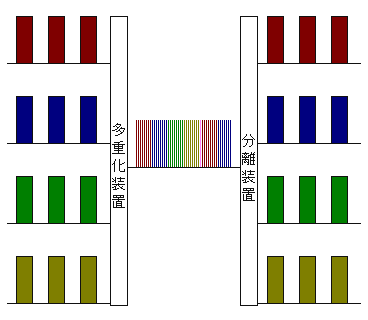
Let's have a look at the diagram below:

Here we only have two devices; Red and Green. Green has address "0" and Red has address "1".
First up, the Green wants to transmit some data, so it goes into the first "timeslot" (a timeslot is the base unit of a TDM network; kind of like a packet). Since there is no "Red" data in the first timeslot, the next slot is blank.

However in the second "Timeslot" both Green and Red want to transmit something. Green goes first and transmits its data, and then Red transmits, so we see a Green block and then a Red block.

And so on; each device waits for its turn, then transmits the data.

To read the data you need to know which data you are looking for, wait until that "timeslot" appears, and then read the data.


Forgiving the Chinese characters, this image shows the same concept, but for more devices. On the left we see all of the data that we want to transmit. In the middle we can see that each device waits until it is their turn, then transmits like crazy.
On the right hand side we can pick out any particular timeslot and read the data.


Why should we care?
One thing that you may have noticed in the above is that all of the devices have the ability to read all of the data on the network.
Time-Division Multiplexing (TDM) Networks are relatively simple; each device is directly connected to the next, and will usually transmit the entirety of the data to all connected devices.

One application that really likes this is large matrices. For example, take a communications. You could have 100 people trying to talk to each other. Any one of those 100 people may want to talk to any (or all) of the other 99 users at once.
A TDM Network makes mincemeat of this; each user is allocated a timeslot on the network. When they talk, their audio fills up their timeslot. When they aren't talking, nothing is transmitted (remember our Red and Green above).
At the other end, the user receiving the call pulls out the audio from all of the timeslots that they want to listen to.

Of course, this requires a bit of computer processing, but most common communications networks are more than capable of handling thousands of users on one TDM network.

In fact, most matrix routers/switchers employ a TDM network of one kind of another. The concept of a TDM can be applied inside a single "box". For example, a video matrix. Each input takes up one timeslot; each output reads from one timeslot. In this way, any input can go to any output without causing interruption to the video. When a TDM is contained in a single box, it is usually referred to as a backplane.

Downfalls?
The biggest drawback of a TDM  TDM network is limited not by the address space, but by the processing speed of the devices and the size of the data being transmitted. Transmitting audio through a computer's processor gives many thousands of audio channels, however transmitting high-definition video over standard networking architecture yields only tens of channels.

TDM networks need to be connected to all other devices in the network. There are some funky devices out there that will bridge two TDM networks, but these are usually limited.

TDM networks are also super sensitive to clocking. Once again, I'll go into clocking in a different article, but for the time being think of it this way.
Think of all of the timeslots as trains. However on TDM station there aren't any "The next train goes to Sydney" announcements, there is only a timetable.
If you only have your wristwatch to go on, you may catch the wrong train; how do you know that your 1:13 is the same as the railway's 1:13?
However, if there is a clock on the station, and one on the train, then you can confirm that your train is the right one before you board.

The same thing happens with TDM; unless you synchronise all of the devices you have no way of knowing which "train" (timeslot) is the right one.


Conclusion
I hope you have enjoyed this. Please comment if you don't "get it" and I will edit this post in order to make it easier to understand.

TDM networks are prevalent in audio, video and communications networks, and that's why I wanted to get this up earlier rather than later. Apologies for the maths earlier; I hope the bird picture helped you through that.

Sunday, July 31, 2011

What is a Packet?

Packet-switching networks, or simply Packet networks, are the most common form of network around.

But what exactly is a "packet"?

Basically, a packet is a bit of information, formatted to move around its specific network. It usually consists of two parts; a payload and formatting/addressing information. The payload can be anything that can be digitised.

For those of us coming from the Audio side of things, we're already used to the thought of packeting information. Think about a Digital audio stream. We find out the amplitude of the analogue audio signal and convert it to 1's and 0's. But before we send it around our mixer, CD player or whatever, we also put a few extra bits of information into it; how many samples per second, if it is a stereo or a mono channel, etc.

The are common examples in Lighting as well. A DMX signal, when looked at obliquely, is a packet. It has a payload (a value) and addressing information (a DMX channel).

However, the most common packet, the one that causes the most joy and woe in the world, is the Internet Protocol (IP) packet.

Below is a pictorial description of the IP packet. Instead of trying to bore you with details, I thought this would be an easy way to show what I mean.

By Nicolargo (Own work) [GFDL (www.gnu.org/copyleft/fdl.html) or CC-BY-SA-3.0-2.5-2.0-1.0 (www.creativecommons.org/licenses/by-sa/3.0)], via Wikimedia Commons

I can hear your brain cogs turning trying to understand what it is that you are looking at.

Let's start at the bottom. The black section that trails off toward the bottom of the page is the data that we are trying to transmit. This can be anything digital; a photo, some audio, a DMX channel change, a webpage... so long as you can turn something into 1's and 0's, you can transmit it over an IP network.

I think I should say that again; anything that can be digitised can be sent over an IP network.

That is why these networks are so powerful; any data, no matter what it is, can be sent over these networks. The amount of data contained in a packet has no real limitation. If you have a large bit of data, you can break it down into a number of packets, send it through the network, and reassemble it at the other end.

As we move from the bottom to the top, we see some things that should appear obvious; Options, Source and Destination address. Normally, a device that receives a packet will read this information and decide what it has to do with it.

I will be going into the way the internet works in future articles, but for the time being please think of a mail sorter in a post office. He looks at each letter and then sends it off to the next closest post office.
That's how addressing works; network equipment will look at the addresses and then decide what to do with it.

Next up the line is a bunch of information that doesn't really matter to us... yet. There are basic housekeeping flags, like the total length of the packet, the time that the packet should be kept around (time to live) and some checksums.


The reason that a lot of Performance Networking protocols (like Cobranet) don't work well on combined networks is because they don't have all of this "extra" information. They have the Source and Destination addresses, but they don't bother with the rest of the data.

In the "olden days" of networking , you could get away with this. Networks were kept separate, and in many cases all of the data was transmitted to every machine on the network.

However, as time has gone on and the Networking world has taken leaps and bounds ahead of the performing arts (private money helps...) they have added a lot of smarts to their technology. That is why we need those extra checksums, version and protocol type flags.

As mentioned above, the next few posts will be looking at the way packets move through the Internet, but please, if you have any questions, just email me and ask.

N.B. As mentioned in the comments below, a "Packet" is technically only the information that is shipped around at Layer 3, the "Transport Layer". This is why technologies such as CobraNet are not strictly IP-based, and also why they do not work on enterprise-type networks. However, this is a little beyond the scope of this Blog, which hopes to examine Networking in Theatres/Broadcasting, as well as the Theatre/Broadcasting aspects that are relevant to a Networking technician working in those areas. Please forgive any shortcuts that I may be taking in order to clarify a point. 

Monday, July 25, 2011

Cisco Unveils new Wireless for Stadia etc

Just a quick one today (after my triumphant rant last week).

Cisco have just announced a new product for doing wireless networks in large areas, like stadia.

I obviously haven't covered the topic yet, however providing Wi-Fi access for an entire audience of thousands proves a lot harder than you'd expect. With the amount of access points (Wi-Fi Antennae, for want of a better word) required to support an entire audience you tend to get a lot of interference. 

I haven't tried, or even seen, Cisco's solution, but as mentioned in last week's post they are one of the world leaders in networking. If they say that it can work, then I have a fair degree of confidence that it will work.

Their press release is here:
http://www.cisco.com/web/strategy/sports/connected_stadium.html

I'll be reading this over the next couple of days, and if I determine anything I will post it here.

Wednesday, July 20, 2011

It can be done!

Converged Production Networks are possibile
 
After speaking to a lot of people in the last couple of days at SMPTE Sydney (and Entech... let's not forget about Entech....) I thought I'd write a quick post to summarise what it is that we are doing at the Opera House.

About three years ago I got talking to the in-house Information Systems (IS) team about the possibilities of a "converged" network. The IS world has been talking about Convergence for about a decade; I even operated the sound at a few of their conferences on the topic. Convergence was nothing new to them, and when I brought it up they were pretty confident that we could "do it".

By "it" I mean combine all of our IP-based services onto one network. At the moment, that includes:
  • The SOH Webpage
  • Ticketing/Box Office Services
  • Security Cameras
  • Telephones
  • The Lighting Control Network
  • Audio streams/distribution for the Concert Hall and Opera Theatre
  • Audio and Amplifier Control for the Concert Hall, Opera Theatre and Drama Theatre
  • Motor control for the Concert Hall PA
  • Stage Communications
Plus all the other things that we don't think of on a daily basis.

I won't lie; it wasn't an easy path. We made a few blunders, but nothing too serious. Okay, we did crash the network, twice. But those crashes were actually caused by separating services rather than combining them.

Why did we do it?

There are a number of reasons.
Firstly, and most importantly, companies like Cisco and HP have been doing networking for decades. It's what they do best, and the reason they are on top is because their stuff works. All the time. If there is a fault then I get an email straight away. The Network admin gets an email. If we dont' fix it, then the Executive gets an email. 
In terms of reliability you can't beat these professional systems.

Next up is cost. There is only a need for one network administrator, one set of spare parts, one warranty contract. We don't need to duplicate infrastructure, and that means that things get cheap, quickly.

In terms of service, I can run out a single fibre cable, and within 10 minutes I can set up a whole production office/box office/security office, all running off one of my switches. We do this all the time. A production manager will want to be near their event, but will also need to answer their phone and check their emails. They can now do all of that, and sell tickets on the side. Or they can be on a comms panel, talking to the stage crews.

Basically, there are advantages for days. 

Separation and Show Criticality

Detractors will mention things like separated services and "Show Criticality". 

In terms of separation, the IS world are already leaps and bounds ahead of us in the production world. They've been keeping your Credit Card number safe every time you swipe it at an EFTPOS terminal for years. They can link offices half-way across the world and make you think you're in the same building. There are so many ways to keep networks "separated" over the same infrastructure that's it's a little scary.

And critically? Cisco switches are used in military installations and banks all over the world. I know that losing a show is a dreadful thing in our world, but in terms of really needing things to work first time, every time, those kinds of industries have us beaten, hands down. 
Besides, would you trust a product with a R&D team larger than most theatre companies, or a company that only has four people on staff? 
We all know that the best way to get results is to get trained professionals.

You don't ask a flyman to run a lighting console, so why would you ask a Lighting guy to run your network?

Anyway, I've gone on a little longer than expected here. The moral of the story is to plan your network. If you're not a network planner, then maybe ask around for one. Heck, email me on camoneillsystems@gmail.com if you'd like. I'm more than happy to look over network designs, or even just to chat about our network.

For now, let me just say it one more time; it can be done.